Top 10 Reasons One Monitor Buzzes and the Other Doesn’t
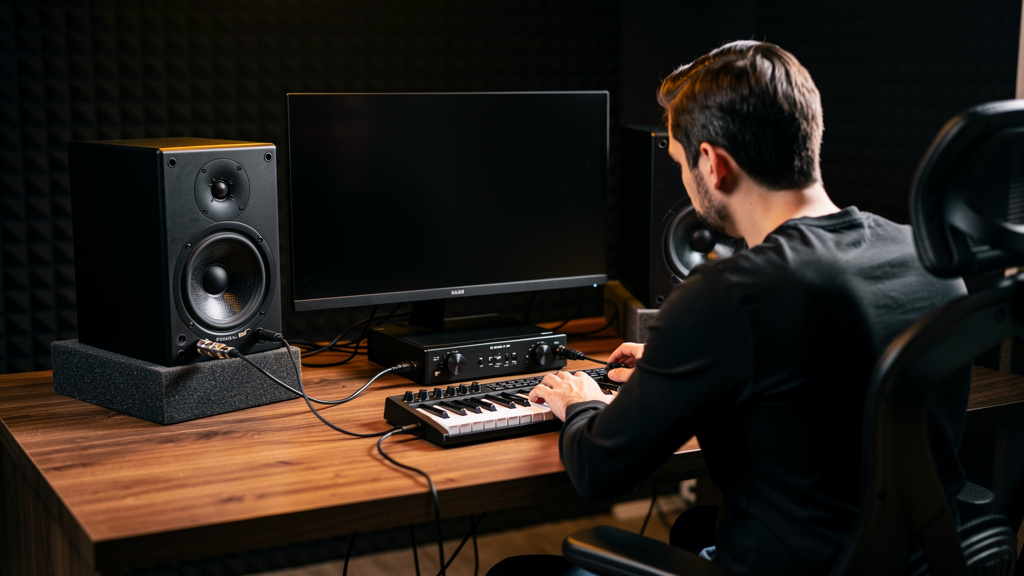
You know the feeling: the session is open, the idea is there, and one speaker is quietly ruining your concentration with a buzz the other one somehow escapes. That kind of fault is maddening because it feels random. If the pair is fed from the same interface, in the same room, on the same desk, why would only one monitor misbehave? The answer is usually that the problem is more local than it first appears. One speaker buzzing while the other stays clean is a clue, not a contradiction.
What follows is a practical ranking of the most common causes, ordered by how often they fool people in real rooms. The point is not to hand you a forum-style bag of guesses. It’s to help you think like a signal path troubleshooter so you can stop swapping gear blindly.
1. The problem is in the cable feeding that speaker
This is the first suspect for a reason. A single bad balanced line can turn one monitor into a noise antenna while the other stays perfectly normal. The failure does not have to be dramatic. A partially broken shield, an intermittent solder joint, or a TRS plug that no longer grips well can all create buzz without killing signal completely.
If the noise stays with the cable when you swap left and right feeds, that tells you a lot. A monitor does not need to be broken to buzz; it may simply be receiving a compromised version of the output. This is especially common with cables that have been stepped on near the connector, bent sharply behind furniture, or repeatedly plugged into tight interface jacks.
People often expect a bad cable to crackle or cut out. In studio work, it frequently shows up instead as steady low-frequency buzz or a fuzzy broadband hash riding under the audio.
2. That monitor is plugged into a different power path
Two monitors on the same desk are often not actually powered the same way. One may be in the wall, the other in a power strip. One may share a strip with a computer display or charger. One may be on an extension that runs near other devices. That small difference is enough to change the ground reference or introduce local interference into only one side.
This matters because asymmetric power connections create asymmetric symptoms. If one speaker has a slightly different relationship to ground, it can become the place where a loop or leakage current shows itself audibly. The other monitor can remain quiet, which tricks you into thinking power cannot be involved. It can be involved, just not globally.
When one speaker buzzes and the other does not, always ask whether their AC path is really identical, not whether both speakers are “getting power.” Those are different questions.
3. One input jack is being used unbalanced without you realizing it
This catches a lot of small studios. A monitor may accept XLR, TRS, and sometimes RCA. Interfaces may offer balanced TRS outputs right next to headphone jacks that look deceptively similar. Adapters get involved, and suddenly one side is balanced while the other is effectively unbalanced.
That one unbalanced leg is far more likely to pick up buzz from nearby power, displays, USB devices, or lighting. The result is one noisy monitor in a system that appears visually symmetrical from across the room.
Even when the connectors fit, the wiring may not match the intended signal format. A cable can pass audio and still defeat the noise rejection you thought you had. That is why “it works” is not the same as “it is wired correctly.”
4. The noisy speaker is physically closer to a noise source
Sometimes the signal path is fine and the room layout is the culprit. One monitor may sit next to a laptop power supply, Wi-Fi router, LED lamp dimmer, wall wart, external drive dock, or display brick. Move the speaker six inches and the buzz changes. That is not magic; it is simple proximity.
Powered monitors contain amplifiers, transformers, and input stages that can react differently depending on what electromagnetic junk is living nearby. One side of a desk often ends up more crowded with chargers and adapters than the other. That alone can explain the mismatch.
When readers say, “Both monitors are the same model, so why only one?” this is one of the first real-world answers. Identical gear in non-identical positions does not behave identically.
5. The source output on the interface has a fault or level mismatch
Not every one-sided buzz starts at the monitor. A single bad output stage on the interface can feed noise into one speaker while the other output stays clean. Sometimes it is a damaged jack. Sometimes it is an internal fault. Sometimes the output is not dead, just weakened or poorly grounded, which makes the downstream monitor much more sensitive to interference.
You can learn a lot by moving the monitor feed to another pair of outputs if your interface has them, or by swapping left and right at the source. The important idea is that the speaker is only one stop in the chain. If the noise relocates with the source output, the monitor has just been cleared.
This is one reason experienced engineers avoid guessing based on where the sound comes out. Audio faults often announce themselves downstream from where they begin.
6. The gain or sensitivity setting is different on that monitor
Many powered monitors have rear-panel input sensitivity or level trim controls. If one monitor is turned up higher than the other, it may reveal more self-noise, more induced hum, or more junk coming from upstream. The pair can still seem balanced if you compensated somewhere else in the chain, which hides the mismatch until you listen for noise in a quiet moment.
This is not always obvious by ear during playback. A monitor running hotter may sound “normal” in a mix but become noticeably buzzier between songs or during fades. It is worth checking whether both speakers are set identically before assuming something has failed.
The deeper principle is simple: noise follows gain. If one side has more of it anywhere in the path, that side will tell on itself first.
7. A ground connection is loose inside one monitor or one connector
This is where the problem stops being setup-related and starts becoming hardware-related. A loose input connector nut, failing solder point, or internal ground bond can make one monitor far more prone to buzz. The reason this fools people is that the speaker may still pass audio just fine. You get tone, level, and stereo image, plus an ugly undercurrent of buzz.
You do not need to jump straight to opening gear or assuming a major failure. But once the usual external causes have been ruled out, a local mechanical issue becomes much more likely. Connectors that wiggle more than they should, noise that changes when a plug is touched, or a monitor that gets better temporarily after being moved are all useful clues.
This is one of those faults where replacing random cables can waste an afternoon because the symptom comes and goes just enough to seem solved.
8. A nearby USB device or computer connection is polluting only one side
USB-related noise does not always affect a whole rig evenly. One monitor feed may run closer to the interface, laptop, hub, or display cable bundle that is radiating hash. One side may share a path with a powered USB device while the other takes a cleaner route. The stereo pair is then exposed to different amounts of contamination.
That difference can produce anything from faint whining to rough buzz, especially as screen activity, drive activity, or CPU load changes. If the noise shifts when a laptop charger is connected, an external monitor wakes up, or a USB hub is unplugged, you are no longer in mystery territory. You are dealing with contamination that found the weaker side of your system.
For studio owners who want a more visual way to trace this kind of source-by-source problem than scattered forum replies, Kill the Noise is a solid resource to keep nearby.
9. The monitor is sharing vibration or contact with something that buzzes mechanically
Not every buzz is electrical. One monitor may be sitting on a resonant desk panel, touching a rack shelf, leaning against a wall, or resting on an isolation pad that is not seated flat. A power supply brick, lamp arm, loose metal stand, or even a picture frame can sympathetically vibrate and make you swear the speaker itself is noisy.
This matters because mechanical buzz tends to survive signal swaps. Engineers can lose time chasing grounding when the real issue is that one cabinet excites the desk differently than the other. The giveaway is often that the buzz changes with playback level or disappears when you place a hand on the desk, stand, or object nearby.
Always separate “noise from the driver” from “noise in the room around the speaker.” They feel similar at the chair and lead to very different fixes.
10. The monitor itself has a failing power supply or amp stage
Yes, sometimes it really is the speaker. Aging capacitors, power supply issues, or amplifier faults can create persistent one-sided buzz that remains no matter what cable, source, or outlet you use. But this should be the last conclusion, not the first one.
The reason is simple: monitor faults are real, but they are less common than setup faults pretending to be hardware failure. If you blame the speaker too early, you may replace a good monitor and carry the actual problem right into the new one.
When the buzz stays with the speaker after sensible isolation tests, the case for service gets stronger. At that point, the diagnosis is no longer a guess. It is a conclusion built from elimination.
What to do with this information
One buzzing monitor is usually telling you the fault is local to one branch of the system: one cable, one outlet path, one position, one connector, one output, or one speaker. That is useful. It means you do not need to rethink the whole studio at once.
Start by comparing the left and right paths piece by piece rather than by impression. Follow the asymmetry. Wherever the two sides stop being truly identical, that is where the answer usually lives. When you troubleshoot that way, the buzz stops feeling mysterious and starts acting like what it is: a specific fault with a limited address.
Comments (0)
Leave a Comment
No comments yet. Be the first to comment!