Why Your USB Mic Gets Noisy When You Charge Your Laptop
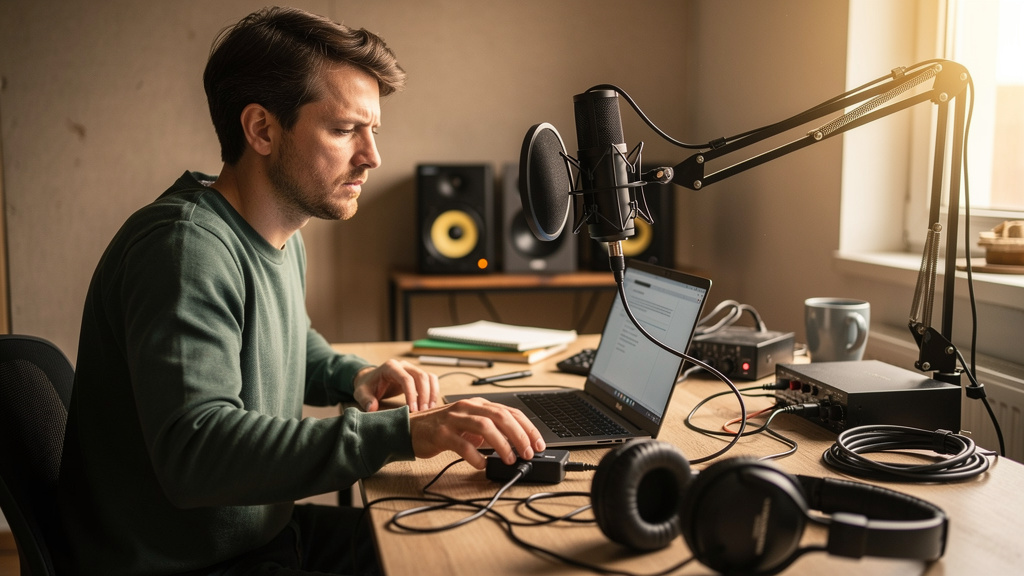
You finally get a clean take going, the voice sounds right, the room is quiet enough, and then the second you plug your laptop into power, your USB mic starts spitting out hiss, buzz, or that weird insect-like digital chatter. It is maddening because nothing in your performance changed. Nothing in your mic technique changed. But suddenly your recording sounds like your desk is haunted.
This is one of those problems that makes smart people waste days in forums, swapping cables and blaming the mic when the real issue usually lives in the relationship between laptop power, USB grounding, and the way noise sneaks into a small recording setup. The good news is that this is usually fixable. The bad news is that it is rarely fixed by buying the most expensive cable in the room.
What is actually changing when you plug in the charger?
When your laptop runs on battery, the whole rig is electrically simpler. The computer is floating relative to mains earth, and a lot of ugly high-frequency junk from the charger is simply out of the picture. The moment you connect the power supply, you add a switching supply, a new ground reference, and often a path for leakage current and high-frequency noise to travel through the USB connection into your mic and monitoring chain.
That matters because a USB microphone is not just a capsule. It is a mic preamp, an analog-to-digital converter, a digital clock, and a USB audio device all sharing power and ground conditions created by your computer. If the laptop power supply is noisy, the USB mic often becomes the place where you hear it.
The symptoms usually fall into a few recognizable types:
- Low hum or buzz that appears only when the charger is connected
- High-pitched whine that changes with screen activity, CPU load, or scrolling
- Ticking or chirping that sounds almost digital or rhythmic
- Broadband hiss that gets worse when other bus-powered devices are attached
Each of those points to a slightly different flavor of the same core problem: unwanted noise entering through power, grounding, or USB coupling rather than through the air into the mic.
Why USB mics are more exposed than people expect
With an XLR mic and a decent interface, the sensitive analog stage is often better isolated from computer noise. With a USB mic, the conversion happens inside the mic body, and the device depends heavily on the USB environment staying clean enough for both power and data. Some designs handle that gracefully. Some do not. Even good mics can struggle if the connected laptop charger is especially dirty or if several devices are sharing the same noisy bus.
This is why replacing the mic is often the wrong first move. If the noise appears only under one power condition, the mic is telling you something useful. It is reacting to the system around it.
If your microphone sounds clean on battery and noisy on wall power, the problem is almost never “bad vocal technique” or “a worn-out mic.” It is a system-noise issue until proven otherwise.
The expensive myth that keeps people stuck
A lot of creators get trapped by the idea that a premium USB cable, a random inline gadget, or a different mic stand somehow fixes power-related noise. Sometimes a change appears to help, but often that is because it changed the routing or reduced a coupling path by accident. It did not solve the underlying reason the noise entered the signal.
The costly myth is simple: if the symptom is audible in the mic, the mic must be the weak link. In reality, charger design, USB bus topology, monitor grounding, and what else is connected to the laptop usually matter more. If you want a repeatable fix instead of lucky guesswork, you have to think in terms of signal flow and noise paths.
That is exactly why many studio owners end up using a visual noise-troubleshooting workbook instead of piecing together contradictory forum replies. When you can see the path the noise is taking, the problem gets a lot less mysterious.
The fastest way to think about the problem
Before you start buying anything, separate the setup into three layers:
- The microphone path — the USB mic, its cable, and the USB port or hub it uses
- The computer power path — battery operation versus charger operation, charger type, and outlet relationship
- The monitoring path — headphones, speakers, powered monitors, and any additional grounded gear
This matters because the noise may be entering in one path and becoming audible in another. For example, you may blame the mic because the recording sounds dirty while monitoring on speakers, but the actual issue may be a ground relationship between the laptop charger and the monitors. Change to headphones and the symptom may change or disappear. That does not mean the mic was innocent or guilty by itself; it means the whole path matters.
Clues that tell you where the noise is entering
You do not need a lab bench to learn a lot from the behavior of the noise. A few observations can narrow the field quickly:
- If the noise changes when you move the charger brick or power cable, radiated interference may be coupling into nearby audio or USB wiring.
- If the noise gets worse when external monitors are connected, grounding between laptop power and speaker power is a strong suspect.
- If the noise appears only on one USB port or only when using a hub, bus power quality or shared USB noise may be involved.
- If the noise follows CPU activity, graphics activity, or charging state, switching noise from the laptop power system is likely bleeding into the audio path.
- If the recorded file itself is clean but you hear noise while listening, your monitoring chain is the real problem.
Those distinctions save a lot of wasted motion. They tell you whether to look at acoustic pickup, USB power contamination, or downstream monitor noise.
What usually helps, and why it helps
There are a few remedies that repeatedly work, but not because they are magic. They work because they change the noise path.
Physical separation is one. Charger bricks, wall warts, monitor power supplies, and coiled AC leads can radiate plenty of high-frequency trash. Moving the charger and its cable away from the mic cable and USB line can reduce coupling more than a fancy accessory ever will.
Power arrangement is another. Plugging laptop power and powered monitors into the same outlet group can sometimes reduce the voltage difference that creates audible ground-related noise. In other rooms, the opposite layout exposes a problem immediately. The point is not a universal rule. The point is that outlet relationships change the ground picture.
USB topology matters too. A bus-powered drive, webcam, RGB device, or cheap hub can pollute the same USB environment your mic depends on. Giving the mic a cleaner, less crowded connection path often helps because it reduces shared noise and current fluctuations.
And then there is monitoring. If headphones are quiet and speakers are not, the system is giving you a huge clue. The recording path and playback path are not the same thing. Treat them separately.
What not to do first
When people panic, they tend to make the setup harder to understand. They add adapters, inline filters, power strips, and replacement parts all at once. That creates two problems: it gets expensive, and it destroys the ability to tell which change actually mattered.
A better approach is to change one variable at a time and watch whether the symptom changes in character, not just in level. A hum turning into a faint whine tells you something different from a hum disappearing entirely. One points to a partial reduction in the same path. The other points to the real path being interrupted.
This is also why random “ground loop fix” boxes are so often disappointing in USB-mic setups. They are aimed at a symptom category, not at the specific architecture of your rig. Without a clear diagnosis, you are just shopping for hope.
When the charger itself is the problem
Not every laptop charger is equally quiet. Some third-party supplies are electrically rougher than the original. Some compact USB-C chargers behave differently under load. Some are fine for office work and annoying for audio. If your noise started after replacing the charger, changing workstations, or adding a high-wattage multi-port supply, that timing is meaningful.
But even here, it is worth staying disciplined. The right lesson is not “always buy the most expensive charger.” The right lesson is that switching power supplies vary, and your audio chain is sensitive enough to reveal it. Diagnosis first, replacement second.
The real win is confidence, not just silence
What most creators want is not merely one quiet session. They want a setup they trust. They want to know that if noise appears before a client call, a voiceover job, or a podcast interview, they can identify the source without tearing the studio apart.
That confidence comes from understanding the difference between acoustic noise, power noise, grounding issues, and USB contamination. Once you can separate those, the whole problem shrinks. You stop guessing. You stop buying decoys. You make cleaner decisions.
If this is the kind of issue that keeps eating your recording time, I’d strongly recommend Kill the Noise. It is built for studio owners who want a clear way to trace noise at the source instead of bouncing between myths, half-fixes, and expensive dead ends.
Comments (0)
Leave a Comment
No comments yet. Be the first to comment!