Why Your Vocal Chain Gets Noisier After Adding a Cloudlifter
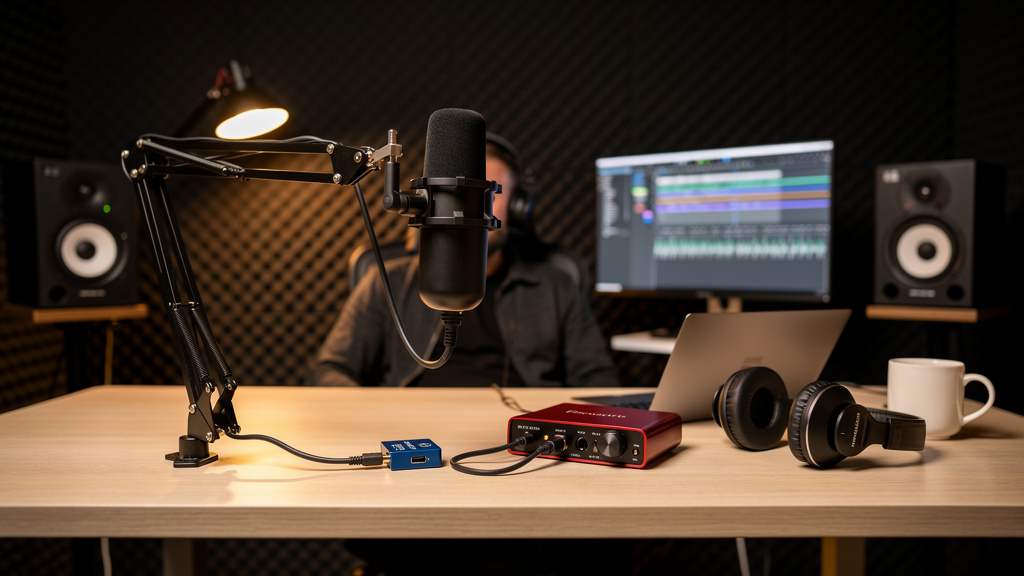
You add a Cloudlifter or another inline mic booster because everyone says it will make a quiet dynamic mic easier to use. Then the exact thing you were trying to avoid shows up: more hiss, more apparent noise, less confidence when you hit record. It is a frustrating kind of problem because the gear is supposed to help, and on paper it often does. But in a real studio chain, adding gain in the wrong place or for the wrong reason can make a noise problem feel bigger, not smaller.
The good news is that this usually has a clear explanation. Inline boosters are simple devices, but the way they interact with your mic, preamp, phantom power, cabling and monitoring habits is not always obvious. Once you understand what they actually do, it becomes much easier to tell whether the booster is helping, doing nothing useful, or exposing another weak point in the chain.
What an inline booster actually changes
A Cloudlifter, FetHead or similar device sits between the microphone and the preamp. With phantom power from the preamp, it adds clean gain to the mic signal before that signal reaches the interface or mixer’s microphone preamp. That matters because some preamps get noticeably noisier when you run them near the top of their gain range.
If your interface preamp becomes hissy at 55 to 60 dB of gain, and the booster gives you around 20 to 25 dB before the preamp stage, you can run the preamp much lower. In the right setup, that lowers the total audible noise floor.
What it does not do is remove noise that is already in the room, already in the microphone signal, or already being created elsewhere in the chain. It also does not fix poor gain staging after the preamp. If you record too quietly and then add 20 dB in software, the noise comes right up with the vocal no matter what booster you used on the way in.
Why the chain can sound noisier after you add one
The most common reason is simple: the booster made your monitor path louder, so now you are hearing noise that was always there.
That sounds trivial, but it catches people constantly. You insert the booster, your voice gets stronger, and you start comparing by ear while adjusting knobs. If your headphone amp or monitor level changes during that process, the comparison stops being honest. What feels like “more hiss” may just be “more level.” This is one reason noise diagnosis gets messy fast. A lot of problems blamed on one device are really the result of level mismatches elsewhere, much like the issues covered in these hum problems that get blamed on power.
There are a few other reasons the booster can seem to make things worse:
- The interface preamp was not the noisy part to begin with.
- The recording level is still too low, so you are adding makeup gain later.
- Phantom power is unstable or not supplying the booster properly.
- A bad XLR cable or adapter is adding intermittent noise.
- You are too far from the mic, so room noise and preamp noise become more obvious.
- You are comparing with heavy compression, which raises background hiss between phrases.
The key idea is that an inline booster only solves one specific problem: not enough clean gain before a noisy preamp. If that is not your problem, it will not create the result you were hoping for.
The fastest way to test whether the booster is helping
You can sort this out in ten minutes if you compare the chain properly. The goal is not to make the knobs match. The goal is to make the recorded vocal level match.
- Pick one consistent phrase. Speak or sing the same line at the same distance from the mic each time.
- Record without the booster. Set the preamp so your peaks land at a sensible level, often around -18 to -12 dBFS for normal spoken or sung material.
- Record with the booster inserted. Turn the preamp gain down until the vocal peaks land in the same range as the first recording.
- Do not change headphone or monitor volume. Leave playback level alone for both takes.
- Listen to the spaces between phrases. Compare the actual noise floor, not just the apparent loudness of the voice.
- Add a compressor only after you compare the dry takes. Compression can exaggerate low-level noise and confuse the result.
If the take with the booster has a lower noise floor at the same vocal level, it is doing its job. If both takes are effectively the same, your preamp may already be quiet enough. If the boosted take is worse, something else in the chain needs attention.
Distance from the mic matters more than most people want it to
This is where many quiet-mic setups fall apart. A booster cannot compensate for bad mic technique. If you use an SM7B, RE20 or other gain-hungry dynamic from 10 or 12 inches away in a normal untreated room, you are asking the whole chain to amplify more room sound, more computer fan, more HVAC, and more preamp noise than necessary.
Get closer first. For most spoken-word setups with a dynamic broadcast mic, a working distance of roughly 2 to 4 inches is often the difference between a strong, quiet recording and a thin, noisy one. Once the direct voice level rises at the capsule, the rest of the chain gets easier. You need less gain, less aggressive compression, and less cleanup after the fact.
If a voice suddenly seems noisy after adding an inline booster, ask whether the booster changed your technique. A stronger monitor feed can make people back off the mic without noticing. Then the signal at the capsule drops, and the noise floor feels worse.
When the interface preamp is the real issue
Some small interfaces are quiet enough that an inline booster brings only a modest improvement. Others get grainy or hissy in the top quarter of the gain knob, and that is exactly where a low-output dynamic mic pushes them. In those cases, the booster can help a lot.
But there is a catch: some users insert the booster, lower the preamp gain, and then turn up something later in the chain to chase more loudness in the headphones or stream mix. Now the preamp is quieter, but the headphone amp, monitor controller, plugin chain or streaming software is adding its own noise or exaggerating the room tone.
So if you are diagnosing hiss, check the whole path:
- Mic and distance
- XLR cable quality and condition
- Inline booster
- Interface preamp gain
- Interface input type set correctly for mic use
- DAW input level and any input plugins
- Channel compression or upward expansion
- Headphone amp or monitor controller level
If one insert or cable in that path is compromised, it can create symptoms that feel mysterious. That is why signal-path articles like this breakdown of patchbay noise stay relevant even for people not using a patchbay. The principle is the same: every added connection is another place a clean signal can get worse.
Phantom power myths that confuse this problem
A common fear is that phantom power is somehow hitting the dynamic mic and causing noise or damage. With a properly wired inline booster and balanced XLR path, that is not how this works. The phantom power is used to run the active electronics in the booster. The dynamic mic itself is not the thing being “phantom powered” in the usual sense.
Where phantom power does matter is reliability. If the interface provides weak or unstable phantom power, the booster may not behave as expected. That can show up as low output, odd distortion, or unstable noise. It is less common than simple gain-staging mistakes, but it is worth checking if the behavior is inconsistent from session to session.
How compression makes people misdiagnose booster noise
Many podcast and voiceover chains use compression on the way in, or they monitor through a compressed channel strip. That is fine creatively, but it can hide the real source of hiss.
Compression reduces peaks and raises low-level detail. If your room tone, fan noise or preamp hiss was already present, compression makes it more obvious in the pauses. When you add an inline booster, the voice often sounds fuller and more immediate, so people follow that by adding more compression. The compressor gets blamed on the booster result without anyone realizing it.
When testing a noisy vocal chain, strip the path back to basics:
- Mic into booster into preamp.
- No EQ, compression, gate or enhancer.
- Record at healthy but conservative peaks.
- Compare dry files first.
Only after that should you rebuild the production chain. If the raw take is clean, the noise is being emphasized later. That is a mix decision, not a mic-booster failure.
When you should skip the booster entirely
Sometimes the best fix is not to use one.
If your interface already has a quiet, high-gain preamp and your mic technique is solid, an inline booster may add complexity without a meaningful benefit. It is another connection, another point of failure, and one more variable to troubleshoot. If your recording level is already healthy and the noise floor is low, the booster is not solving anything urgent.
You can often tell you do not need it when:
- Your interface handles your dynamic mic cleanly at normal gain settings.
- Your raw takes are quiet enough before processing.
- You are not adding big chunks of gain in post.
- Your room noise is more obvious than any electronic hiss.
In that case, money and effort are usually better spent on mic position, room noise control, or a better monitoring workflow.
A cleaner vocal chain starts with the right question
The useful question is not “Do inline boosters work?” They do. The useful question is “Which stage of my chain is actually noisy?”
If the answer is the preamp at high gain, the booster may be exactly right. If the answer is room noise, weak vocal level at the mic, heavy compression, unstable cabling, or low recorded level followed by digital makeup gain, the booster will not rescue the situation on its own.
That is why two people can buy the same device and report opposite results. One fixed a genuine preamp limitation. The other added a clean gain stage to a chain whose real problem was somewhere else.
Once you compare at matched levels, keep the mic close, and test the raw chain before processing, the mystery usually disappears. And when the mystery disappears, so does a lot of wasted shopping.
Comments (0)
Leave a Comment
No comments yet. Be the first to comment!