Top 5 Reasons Your Interface Clicks at Buffer Changes
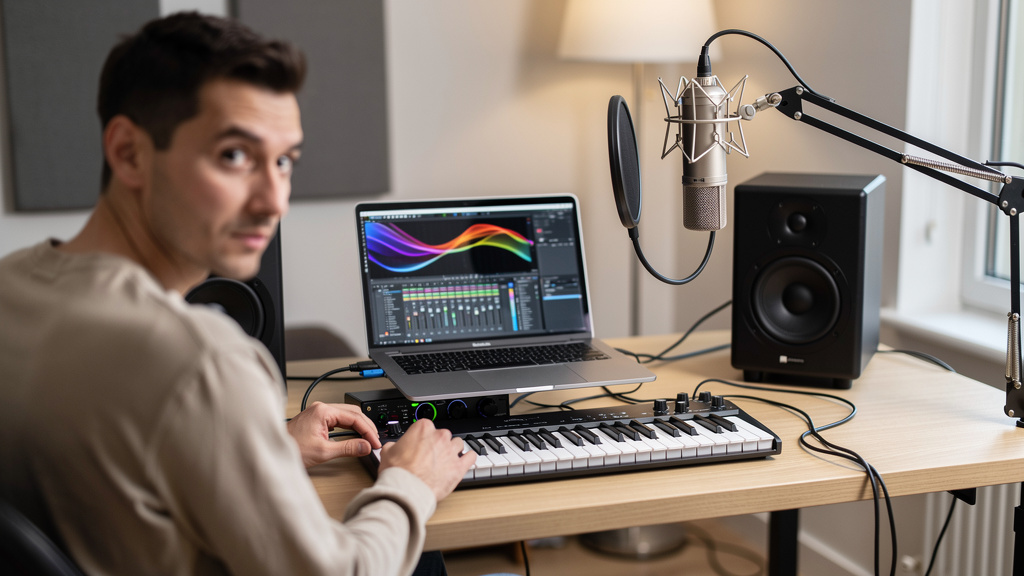
You change the buffer because the session is getting heavy, hit play again, and suddenly the interface starts clicking like the whole rig forgot how to behave. It is one of those maddening studio problems that feels random until it starts happening every day. The worst part is that it can masquerade as a bad cable, a dying interface, a plugin meltdown, or some vague “computer issue” nobody can pin down. In practice, buffer-change clicks usually have a smaller set of causes than people think, and once you know where the fault tends to live, troubleshooting gets a lot faster.
This is not about normal crackle from trying to run a huge mix at a tiny buffer. This is the specific problem where audio was more or less stable, you changed the buffer size, and now the system clicks, pops, or briefly loses lock. That points to a handoff problem somewhere between the driver, clocking, session settings, and the way the computer is talking to the interface.
1. The interface driver did not fully reinitialize
This is the most common one, especially on systems that have behaved “mostly fine” for months. When you change buffer size, the driver has to renegotiate the audio stream with the DAW and the operating system. If that handoff is messy, the interface can land in a half-stable state where playback technically works, but timing is no longer clean.
You will often notice a pattern here: the clicks appear only after a buffer change, disappear after closing and reopening the DAW, or vanish if you power-cycle the interface. That is a strong sign the audio engine did not reset cleanly rather than a physical fault in the signal path.
A few conditions make this more likely:
- The interface control app is open and fighting the DAW for sample-rate or buffer control
- The driver is older than the current OS version
- The computer was asleep or hibernated before the session
- Another audio application still has partial control of the device
If changing the buffer causes trouble, do not just keep changing it back and forth hoping it settles. Stop playback, close the session, and reset the audio path in a deliberate order. If the problem only happens after the change and not after a fresh launch, you are not chasing analog noise. You are chasing a software-state problem.
2. Your session sample rate and the hardware clock are briefly disagreeing
Clicks from clock disagreement have a different feel from ordinary overload crackle. They can sound sharper, more intermittent, and oddly persistent even when CPU use looks normal. Buffer changes can expose this because some interfaces briefly re-lock their clock or renegotiate sync when the driver resets.
This gets especially common when one of these is true:
- You are using external digital gear over S/PDIF or ADAT
- The interface was last used at a different sample rate
- The DAW session opens at one rate while the hardware panel still shows another
- Aggregate or multi-device audio setups are involved
Even if your current project is simple, the system may still be remembering an earlier clock relationship. A buffer change can be the moment that hidden mismatch becomes audible. The result is not always a dramatic “no sync” failure. Sometimes it is just enough instability to produce ticks.
The useful question is not “what sample rate does my session say?” but “what is the actual master clock right now, and what is every connected device following?” Those are not always the same thing. If your interface can sync internally or externally, verify which mode it is in before assuming the clicks are coming from plugin load or bad power.
3. USB bandwidth is not the issue, but USB behavior often is
People love to blame USB as if the bus itself is too slow for audio. For most modern interfaces, that is not the real problem. The more likely issue is unstable USB behavior during the reset that happens when the buffer changes. The interface may momentarily lose priority, re-enumerate poorly, or share a controller with devices that create timing interruptions.
This is why the same interface can be flawless on one port and temperamental on another. It is also why a perfectly decent computer can show clicks only when an external SSD, webcam, Wi-Fi adapter, or dock is active on the same path.
Here is the kind of chain that tends to create trouble:
- Audio interface connected through a hub or multifunction dock
- Drive streaming session audio on the same USB controller
- Buffer change forces the driver to reset the stream
- Another device grabs bus attention for a moment
- The interface comes back slightly late and starts clicking
That does not mean every hub is bad or every dock is unusable. It means audio devices are unusually sensitive to timing hiccups during renegotiation. A direct connection to a stable port often tells you more in five minutes than an hour of guessing. If the problem disappears on a different port or with fewer shared devices, you have learned something important about where the fault lives.
4. The DAW is compensating for plugins, but the live audio engine is struggling to switch modes
Some sessions sit right on the edge between “fine at mix settings” and “fine at tracking settings,” and the transition itself is where things break. Buffer changes alter how the DAW schedules plugin processing, latency compensation, and real-time monitoring. If a session contains a few heavy lookahead processors, linear-phase tools, oversampling stages, or hungry virtual instruments, the change can push the audio engine into an awkward reset.
That does not always show up as a CPU meter pinned into the red. Some systems click during the switch even though average CPU use looks reasonable. What matters is whether the engine can reconfigure in real time without one component stalling the chain.
A good clue is that the clicks happen only in certain sessions, not globally across the whole computer. Another clue is that bypassing a few master-bus or instrument plugins makes the problem disappear. In that case, the interface is probably not the root cause. The session architecture is.
This matters because many people respond by raising the buffer again and again, which treats the symptom but never identifies the trigger. If one plugin family or one monitoring setup causes the issue every time, that is a workflow problem worth isolating. Keep your low-latency tracking state simpler than your full mix state, and transitions become much cleaner.
5. Power management is interrupting the audio path at exactly the wrong moment
This one hides in plain sight because the system can seem completely healthy until the instant something changes. Buffer adjustments are a form of state change, and power-saving features do not always handle them gracefully. CPU throttling, USB selective suspend, aggressive laptop power profiles, and background device sleep behavior can all introduce tiny interruptions during driver reset.
The reason this gets overlooked is that playback may be stable once it gets going. The clicks happen at the moment of change, so people blame the DAW command rather than the system policy underneath it.
If your interface behaves worse on battery power, worse after the computer has been idle, or worse on a general-purpose everyday machine than on a stripped-down studio rig, power management deserves suspicion. That is not glamorous advice, but it is practical. Audio hates unpredictable state changes.
When I am narrowing this down, I want answers to a few basic questions:
- Does the issue happen only after sleep or also after a cold boot?
- Does it happen in every DAW or only one?
- Does it happen at every sample rate or only one session format?
- Does it stop when the interface is connected directly and unnecessary peripherals are removed?
- Does a driver restart fix it immediately?
Those answers separate analog myths from digital reality very quickly.
What to do with this information
The useful move is not to shotgun ten random fixes into the system. It is to identify what kind of click you are hearing and when it appears. If clicks begin only after buffer changes, think in terms of reinitialization, clock handoff, USB behavior, plugin-state transitions, and power management before you start swapping cables or blaming “dirty power.”
If you want a more visual way to sort through noise and instability problems like this without getting dragged through contradictory forum advice, this interactive workbook for tracking noise at the source is a solid resource to keep nearby.
Start with the repeatable pattern: same session or every session, same port or every port, after sleep or after a clean boot, internal clock or external sync. Once you can name the exact condition that triggers the clicks, the fix usually stops being mysterious.
Comments (0)
Leave a Comment
No comments yet. Be the first to comment!