Why Your Audio Interface Clicks at Buffer Boundaries
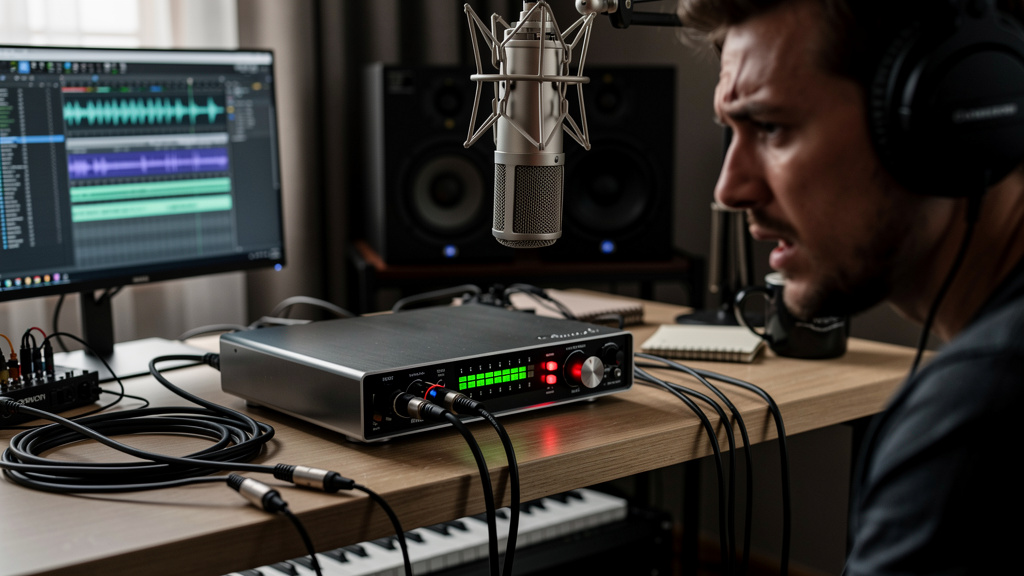
You hit record, the take feels good, and then there it is—that little click that shows up every few seconds like someone tapping a relay in the wall. Not a constant buzz. Not hiss. Just sharp, ugly ticks that ruin an otherwise clean vocal, podcast, or guitar pass. This is one of those problems that sends people down the wrong road fast, because it sounds electrical, but very often it isn’t. It’s the digital side of your studio telling you something about timing, workload, or sync.
The maddening part is that these clicks often appear in patterns. Maybe they happen only at a 64-sample buffer, only when your session gets dense, only when the interface is set to one sample rate and the OS thinks it’s on another, or only after the computer has been awake for hours. Once you start hearing the pattern, the problem stops being mysterious. It becomes diagnosable.
What buffer-boundary clicks usually sound like
Not all pops mean the same thing. A ground issue tends to live underneath the audio as a hum or buzz. Radio interference has that chatter, whine, or ghost-voice behavior. Buffer-related clicks are different: short, abrupt transients that seem to happen when audio handoff breaks for a split second.
If the noise is:
- brief and sharp rather than sustained,
- more obvious under CPU load,
- tied to a certain buffer size,
- worse when using software monitoring or heavy plugins,
- or present in the recording itself rather than just your speakers,
you’re probably not dealing with a cable problem at all. You’re dealing with interrupted audio streaming, clock disagreement, or driver behavior.
That distinction matters, because a lot of people start buying power conditioners, replacement interfaces, and premium cables when the real issue is a system that can’t deliver audio blocks consistently on time.
Why the click often lands at the buffer boundary
Digital audio moves in chunks. Your interface and computer are constantly passing blocks of samples back and forth. The buffer is the small holding area that gives the system time to process and deliver each block before playback or recording continues.
When that handoff goes wrong, even for an instant, you get a discontinuity. In plain English: one block ends, the next one arrives late or malformed, and the waveform jumps instead of flowing smoothly. That jump is the click.
At lower buffer sizes, the system has less time to think. That’s great for latency, but harder on the computer, drivers, USB bus, and plugin chain. At higher buffer sizes, the system gets more breathing room, but if the problem is clock mismatch or a driver conflict, a bigger buffer may only hide it rather than solve it.
This is why two people can own the same interface and have completely different experiences. The box on the desk is only one part of the path. The real chain includes:
- the interface driver,
- the DAW audio engine,
- the computer’s power management,
- the connection type and bus traffic,
- background services,
- sample rate and clock settings,
- and the plugin load inside the session.
Miss one weak link and the whole system can sound unstable.
The expensive myth that wastes the most money
Here’s the myth: if your audio clicks, your interface is cheap and you need a better one.
Sometimes hardware really is faulty. But far more often, the interface is getting blamed for a timing problem happening somewhere around it. I’ve seen excellent interfaces click because a browser tab grabbed the audio device, because the operating system sample rate didn’t match the DAW, because a laptop dropped into aggressive power-saving mode, or because a single plugin started spiking the CPU every few seconds.
That’s why visual troubleshooting beats forum folklore. If you want a structured way to identify where the break is actually happening, Kill the Noise is useful precisely because it maps the source logic instead of throwing random fixes at you.
The goal isn’t to guess better. It’s to stop guessing.
Clocking problems can masquerade as buffer problems
One reason this issue gets confusing is that clock trouble and buffer trouble can sound similar. Digital audio devices need to agree on time. If one device thinks 48,000 samples per second is the law and another drifts or expects 44.1 kHz behavior, audio can crackle, click, or distort in ways that feel intermittent.
This shows up a lot when people add digital gear like external preamps, S/PDIF devices, ADAT expanders, or aggregate multiple interfaces. It can also happen more simply when the DAW is at one sample rate and the interface control panel is set to another, especially after switching between music apps, video apps, and conferencing software.
Pay attention to when the noise starts:
- right after changing sample rate,
- only when an external digital device is connected,
- after opening another audio application,
- or after waking the computer from sleep.
Those clues point less toward analog noise and more toward sync or driver state.
The session itself may be causing the problem
Another pattern worth respecting: the clean, empty session that behaves perfectly, followed by the real project that starts clicking halfway through editing. That usually means your system margin is gone.
Common triggers include oversampling plugins, lookahead processors, virtual instruments with heavy streaming demands, real-time noise reduction, and browser windows or sync apps competing in the background. You may still have plenty of average CPU headroom and still get clicks, because audio hates spikes more than averages. One fast burst of demand at the wrong moment is enough.
That’s why the symptom can feel random while actually being very consistent. It happens when the system crosses a threshold.
How to narrow it down without wandering in circles
You do not need to tear your studio apart to learn something useful. A few disciplined observations can tell you what family of problem you’re in.
- Change only one variable at a time. If you raise the buffer, disable Wi-Fi, swap sample rates, and bypass plugins all at once, you won’t know what mattered.
- Compare an empty session to the failing session. If the clicks vanish in a blank project, your core hardware path may be fine.
- Watch whether the clicks print into the recording. If they are captured in the file, the interruption is happening before or during record, not just in monitor playback.
- Check every place sample rate is declared. Interface software, DAW settings, OS audio settings, and any external digital device all need to agree.
- Notice whether the issue follows buffer size. If 64 clicks, 128 is better, and 256 is stable, the system is telling you it needs more processing margin or cleaner driver behavior.
- Test with plugins bypassed. Not forever, just long enough to learn whether one processor or instrument is creating the dropouts.
That’s not the whole diagnostic tree, but it’s enough to stop the usual panic-buying and point you in the right direction.
USB, power states, and background services matter more than people think
Modern studios run on general-purpose computers, and general-purpose computers love to make decisions behind your back. They park cores, throttle clocks, suspend ports, scan cloud folders, index drives, and wake background tasks at exactly the wrong moment.
For audio, consistency matters more than peak benchmark numbers. A machine that is slightly slower but predictable will often record more cleanly than a faster machine with aggressive power management.
If clicks seem to appear after the computer has been sitting idle, after sleep, or only on battery power, that points toward system-state behavior. If they get worse when external drives, webcams, or capture devices are active, that points toward bus contention or driver competition.
This is where people get tripped up: the studio sounds like it has a noise problem, but the root cause is often scheduling and transport, not noise in the analog sense.
What a stable system usually has in common
Reliable recording rigs are not magical. They’re boring in the best way. They tend to have a clear clock master, one intentional sample rate, sane buffer choices for the task, minimal background churn, and a workflow that separates tracking needs from mix needs.
In practice, that means:
- low buffer when tracking only if the session is light enough,
- higher buffer when mixing dense projects,
- one interface driver path instead of stacked audio workarounds,
- careful use of external digital gear,
- and a computer setup that favors stable audio performance over convenience features.
None of that is glamorous, but it’s how you stop hearing those tiny digital fractures that ruin trust in your setup.
When this problem is actually fixable
The good news is that buffer-boundary clicks are usually fixable once you stop treating them like mysterious static. They have causes. They leave clues. And they respond to methodical troubleshooting much better than to random upgrades.
If you’re tired of piecing together half-answers from threads where everyone describes a different symptom, I’d point you toward the Kill the Noise workbook. It’s a practical way to work through noise and interruption problems at the source, with the kind of visual structure that makes the studio signal path finally make sense.
That moment when the take rolls clean and stays clean is not luck. It’s what happens when the system is actually agreeing with itself.
Comments (0)
Leave a Comment
No comments yet. Be the first to comment!